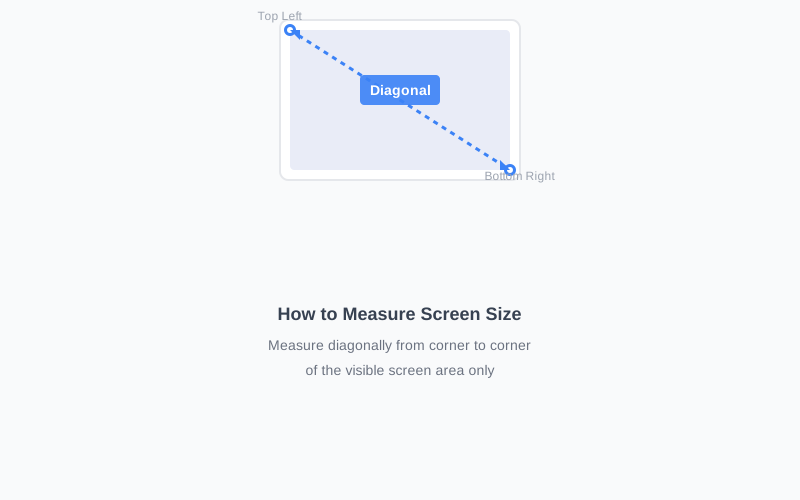
Screen size is measured diagonally from corner to corner of the visible display area. This guide covers multiple methods to measure your screen accurately, whether you're using a tape measure, digital caliper, or our free online tool.
Quick Check: Use Our Free Tool
Get your screen size instantly without measuring. Works on any device!
Check Screen Size NowTable of Contents
Method 1: Measure with Tape Measure
Step-by-Step Instructions
-
1
Turn Off Your Device
Power off your phone, laptop, or monitor. This makes it easier to see the screen edges and prevents accidental touches.
-
2
Locate the Visible Screen Area
Identify the actual display area. Don't measure the bezel (frame) around the screen - only measure the visible screen itself.
-
3
Measure Diagonally
Place your tape measure at one corner of the visible screen and extend it diagonally to the opposite corner. Make sure the tape is flat against the screen surface.
-
4
Read the Measurement
Read the measurement in inches where the tape meets the opposite corner. This is your screen size (e.g., 6.1 inches, 13.3 inches, 27 inches).
Important: Screen size is always measured diagonally, not horizontally or vertically. This is the industry standard.
Method 2: Digital Caliper (Most Accurate)
Digital calipers provide the most precise measurements, especially for smaller screens like phones. They're affordable and easy to use.
Why Use Digital Calipers?
- ✓ Accuracy to 0.01 inches (0.1mm)
- ✓ Easy to read digital display
- ✓ Perfect for small screens (phones, tablets)
- ✓ Can measure width and height too
How to Use Digital Calipers
- Turn on the digital caliper and zero it out
- Place the outer jaws at opposite corners of the screen
- Gently close the jaws until they touch the screen corners
- Read the measurement from the digital display
- Convert from millimeters to inches if needed (divide by 25.4)
Recommended Measuring Tools
Get accurate measurements with these professional tools:
📏 Digital Calipers on Amazon
Amazon affiliate links will be integrated here for digital calipers, measuring tools, and rulers
Method 3: Online Tools (Easiest)
The easiest way to find your screen size is using our free online tool. It automatically detects your screen size, resolution, and device information.
Using MyScreenSize.com
- Visit our screen size checker
- The tool automatically detects your screen size
- View detailed information including resolution and device model
- No measuring required - instant results!
Common Screen Sizes Reference
Here are the most common screen sizes for different device types. Use this as a reference to identify your device.
📱 Smartphones
- • iPhone SE: 4.7"
- • iPhone 12/13/14: 6.1"
- • iPhone 14 Plus: 6.7"
- • iPhone 14 Pro Max: 6.7"
- • Samsung Galaxy S23: 6.1"
- • Samsung Galaxy S23 Ultra: 6.8"
- • Google Pixel 7: 6.3"
💻 Laptops
- • MacBook Air 13": 13.3"
- • MacBook Pro 14": 14.2"
- • MacBook Pro 16": 16.2"
- • Dell XPS 13: 13.4"
- • HP Spectre 13: 13.3"
- • Lenovo ThinkPad: 14" or 15.6"
- • Gaming Laptops: 15.6" or 17.3"
🖥️ Monitors
- • Small: 21.5" - 24"
- • Standard: 27" - 32"
- • Large: 34" - 38"
- • Ultrawide: 29" - 49"
- • 4K Monitors: 27" - 32"
- • Gaming: 24" - 27"
- • Professional: 27" - 32"
Pro Tips & Troubleshooting
💡 Tip: Measure Twice
Always measure twice to ensure accuracy. If measurements differ, take the average.
✅ Don't Include Bezels
Only measure the visible screen area, not the frame (bezel) around it. Screen size refers to the display itself.
⚠️ Curved Screens
For curved screens, measure along the curve, not in a straight line. This gives you the actual screen size.
📐 Understanding Aspect Ratios
Screen size is diagonal, but aspect ratio (16:9, 21:9, etc.) affects width and height. Two screens can have the same diagonal but different dimensions.